
Get to know
your new file flow.
Your Android storage, easier to explore. Start with the files in your pocket, then connect another device when you need it.
A home for the things
you reach for.
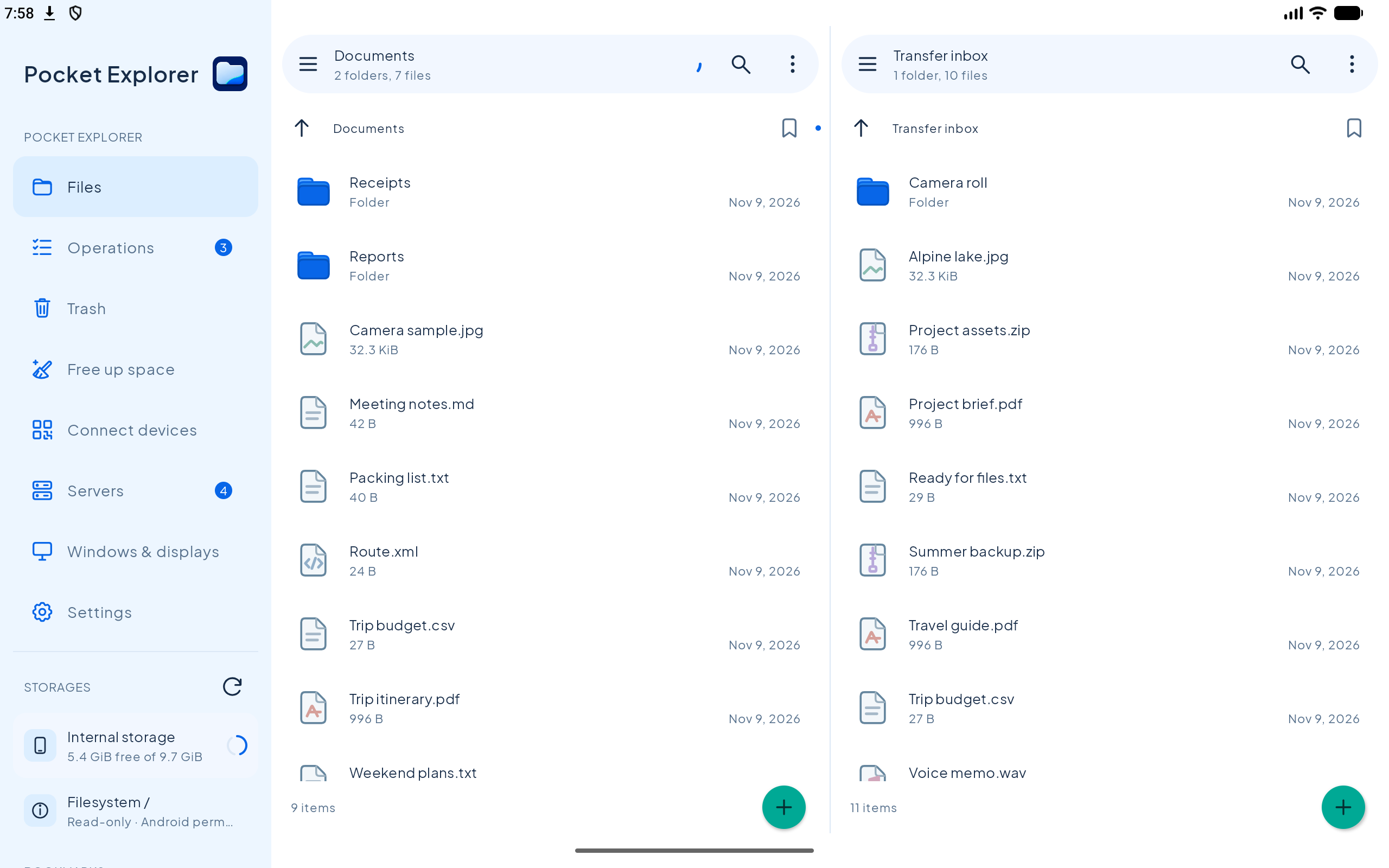
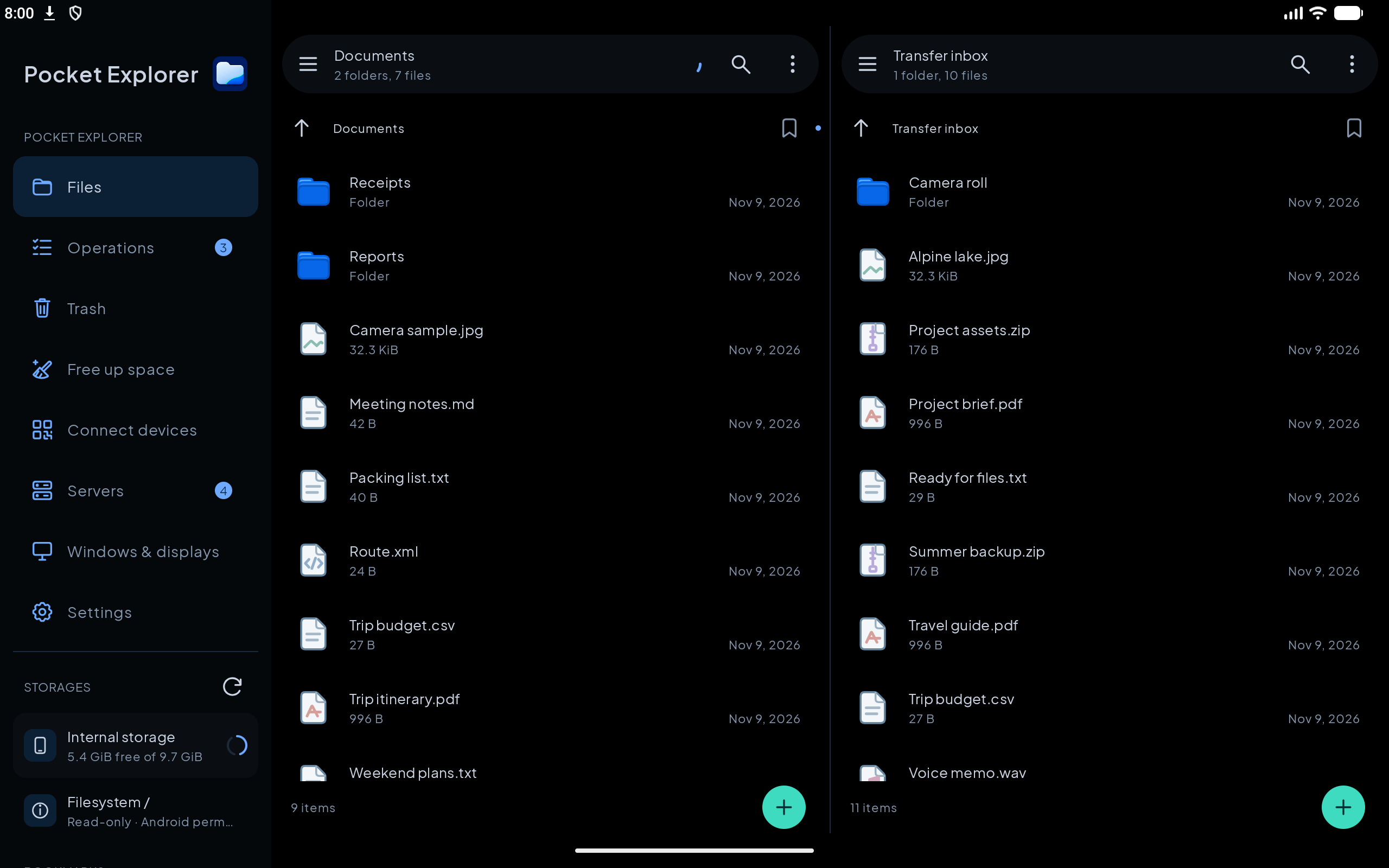
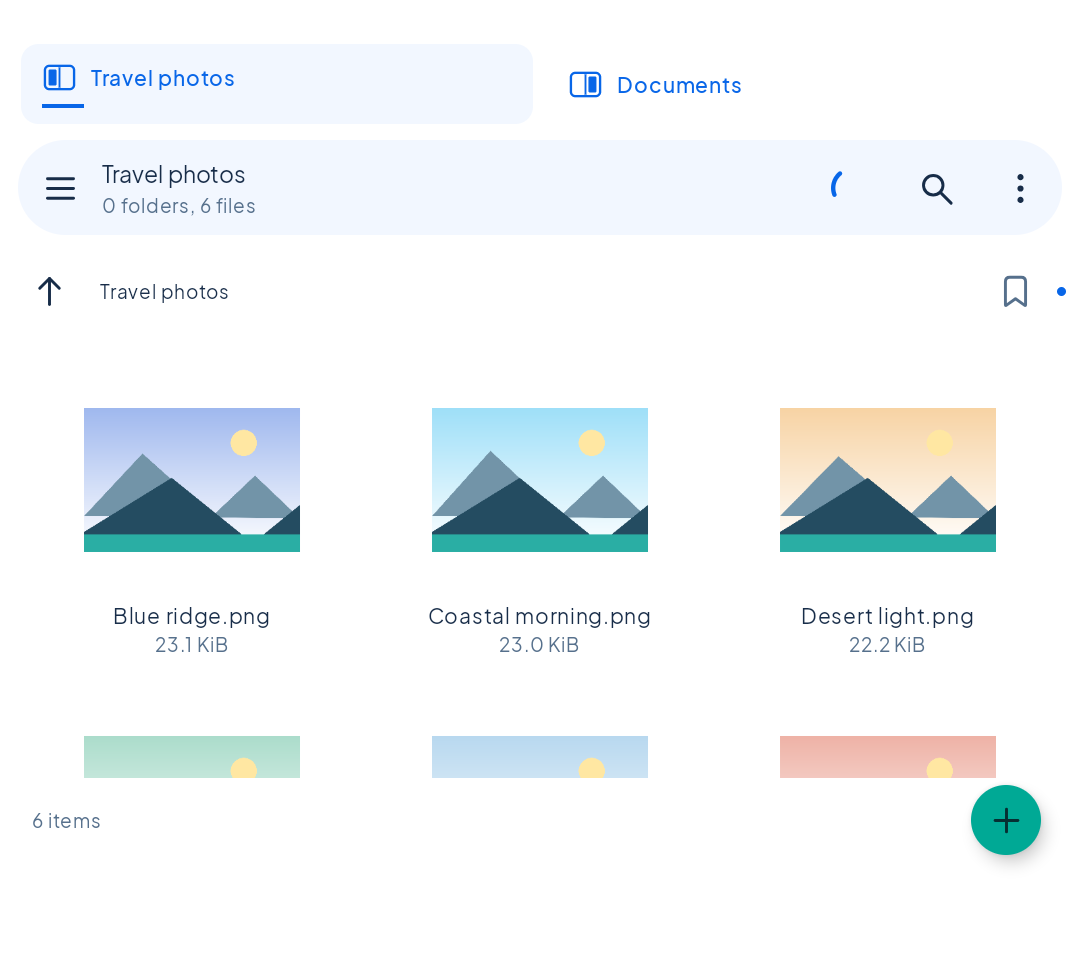
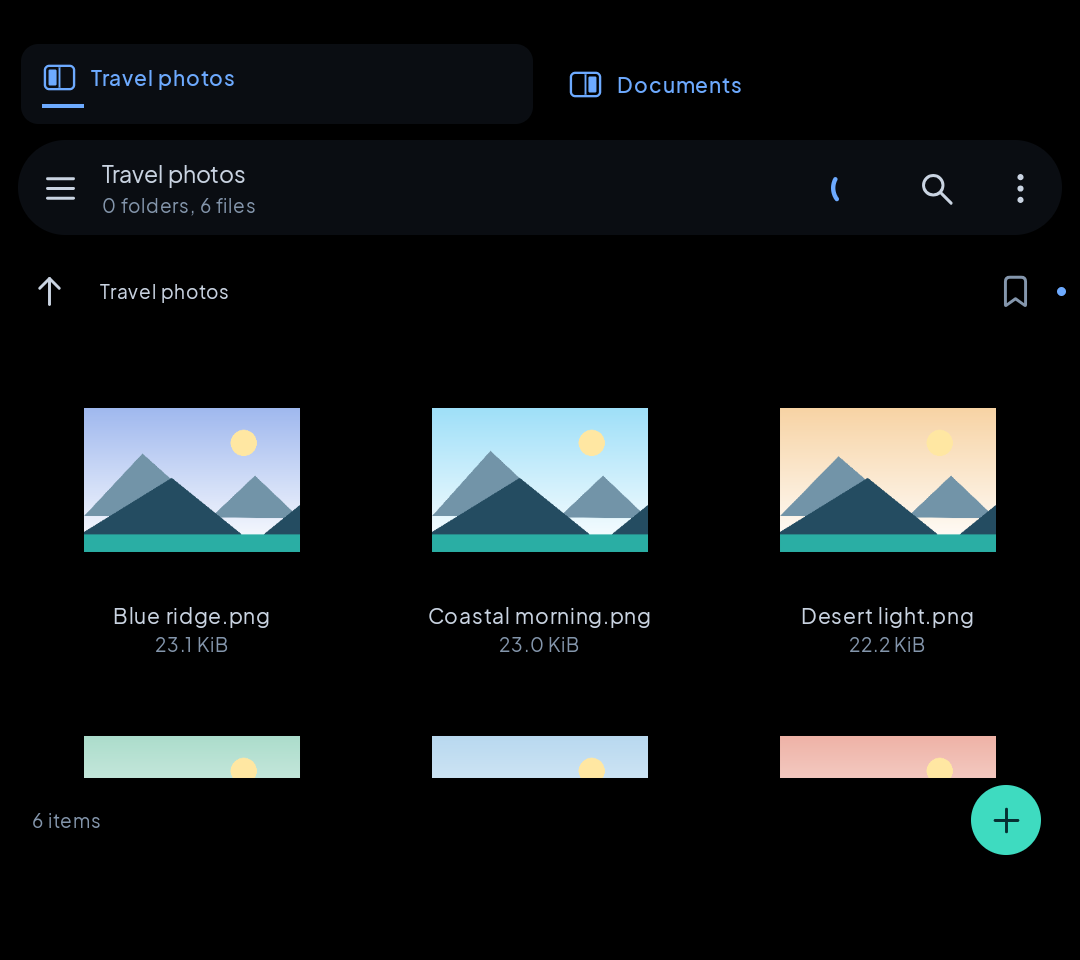
Browse accessible local storage and your paired device’s approved folders. A compact list gives filenames room; Grid and Gallery help when a picture is more useful.
- Bookmark frequently used folders and choose views per folder.
- Copy or cut, navigate to the destination, then paste and review.
- Use keyboard shortcuts or reviewed drag-and-drop imports.
Dotfiles begin hidden with a toggle. Move stays within a device; copy between devices. Android access does not unlock other apps’ private data.
Big work.
A visible way forward.
Persistent native jobs keep accepted work, progress and recovery together. Main operations queue in order while bounded workers handle internal parallel work. Keep navigating while the queue runs.
- Choose a destination and a collision policy that preserves existing content by default.
- Follow progress, current archive phases and available estimates.
- After interruption, reconnect the same peer credentials and explicitly resume supported native jobs.
Native chunk receipts and content checks are separate from ordinary SFTP/WebDAV clients. Source changes, storage permissions or a damaged destination may need review. Cancelling does not undo files already published.
A whole archive.
Not a guessing game.
Create ZIP, 7z and TAR-family archives, or extract supported ZIP, 7z, RAR/RAR5 and compressed streams. Archive work streams data through bounded buffers instead of allocating the whole expanded archive in RAM.
- Keep required split parts together; select one or several parts from the same family.
- Review the normalized archive and any missing-part errors before starting.
- Supply a password when encryption requires it, then follow the extraction phase.
ZIP/7z support encrypted creation; 7z can encrypt filenames. RAR creation and split-archive creation are not included. Free disk space, safety limits, complete volumes and format support still matter; archive restart is not byte-level decoder resume.
More than
a filename.
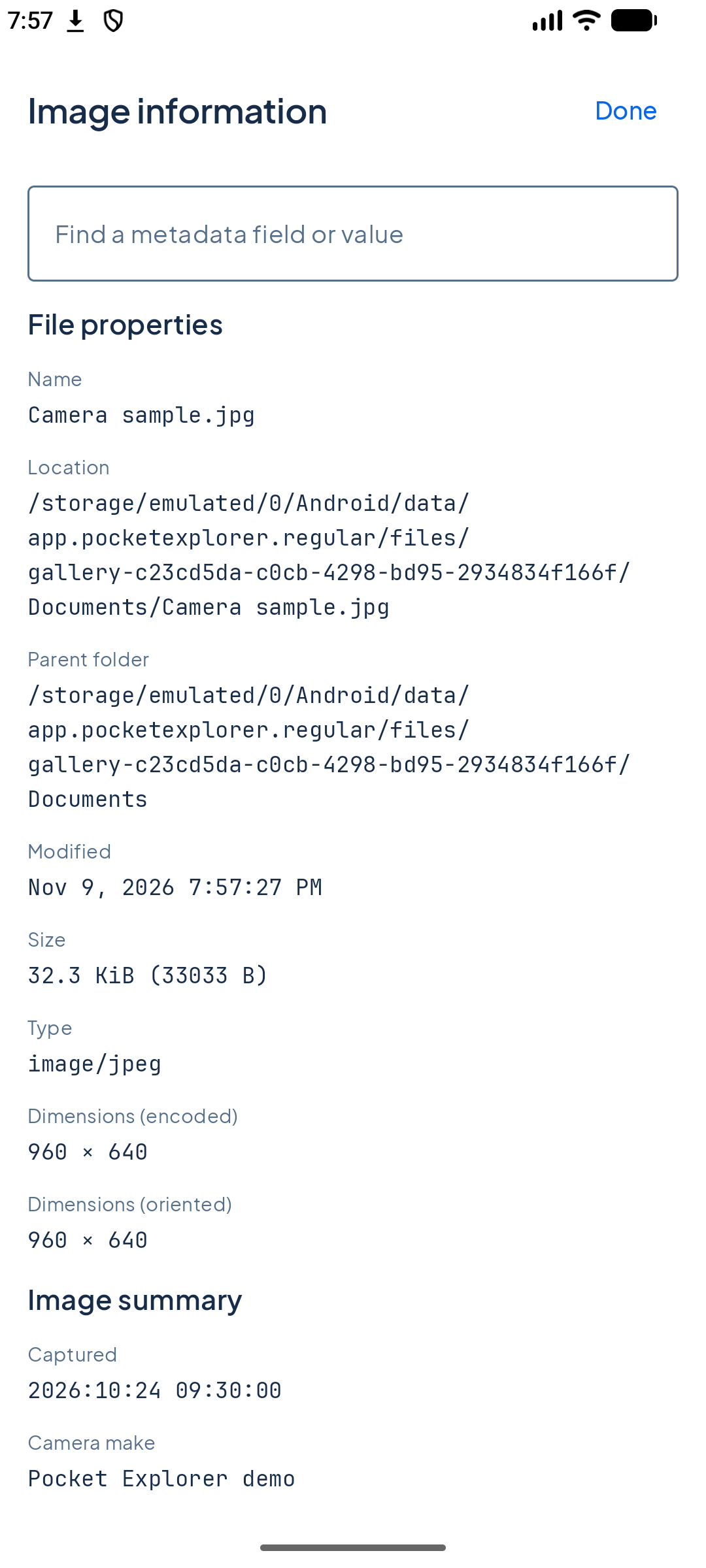
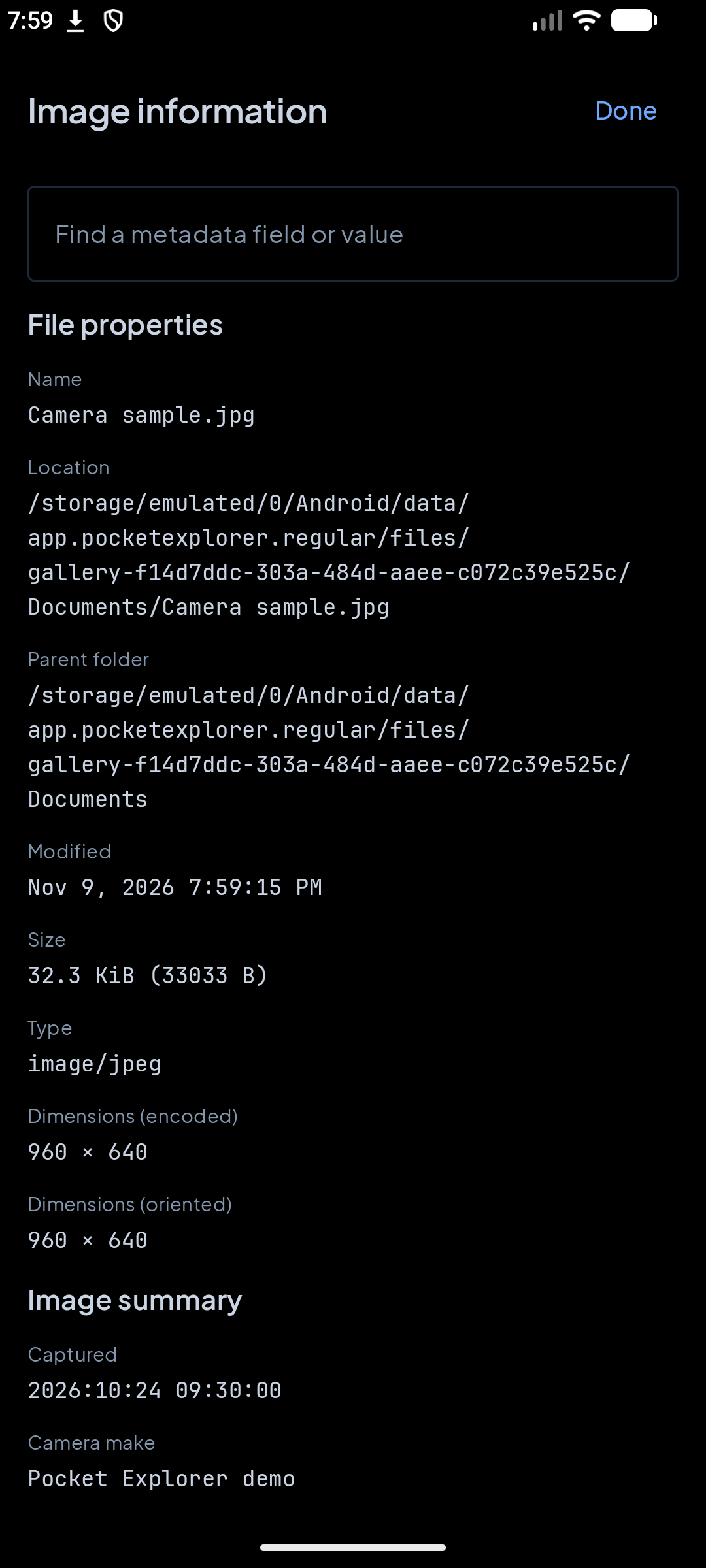
Preview images, text, PDFs and supported audio/video. Inspect available dimensions, camera/exposure information and embedded metadata. On Android, pinch to zoom images and PDF canvases.
- Inspect the file before moving or removing it.
- Make a quick edit to a supported UTF-8 text file.
- Review outside-change conflicts instead of silently replacing a changed file.
Previews and the basic text editor are bounded; media support depends on platform codecs. Proprietary or unavailable metadata is not invented. Embedded location tags can be present in original photos.
Keep what matters.
Review the rest.
Look at storage categories, large or old files and hash-verified duplicate candidates. The choice of what goes stays with you—nothing is cleaned automatically.
- Analyze accessible storage, then inspect the candidates.
- Select the files you want to remove and review the action.
- Restore from application-managed Trash, or explicitly Empty Trash when ready.
Trash keeps consuming storage until purged. Logical duplicate bytes are not a guarantee of physical space savings. Keep a backup for important work; permanent deletion is a separate, irreversible choice.
Open a session.
Keep the boundaries.
Native pairing, browser sign-in and standard file-server access serve different jobs. Each stays within the approved share and uses its own authorization.
- Phone to phone: show the sharing phone’s QR, scan it on the other Android device, then approve on the sharing phone.
- Browser: start Web Explorer, verify/trust its HTTPS certificate, then sign in by credentials or owner-approved browser QR.
- Tools you use: start HTTPS WebDAV or SFTP with separate configurable credentials, then stop unused sessions.
Native pairing grants one direction, not automatic reverse access. Browser trust is separate from app pinning. SFTP is file access, not a shell. There is no plaintext FTP, internet relay or cloud-drive integration.
A handheld deserves
a little more workspace.
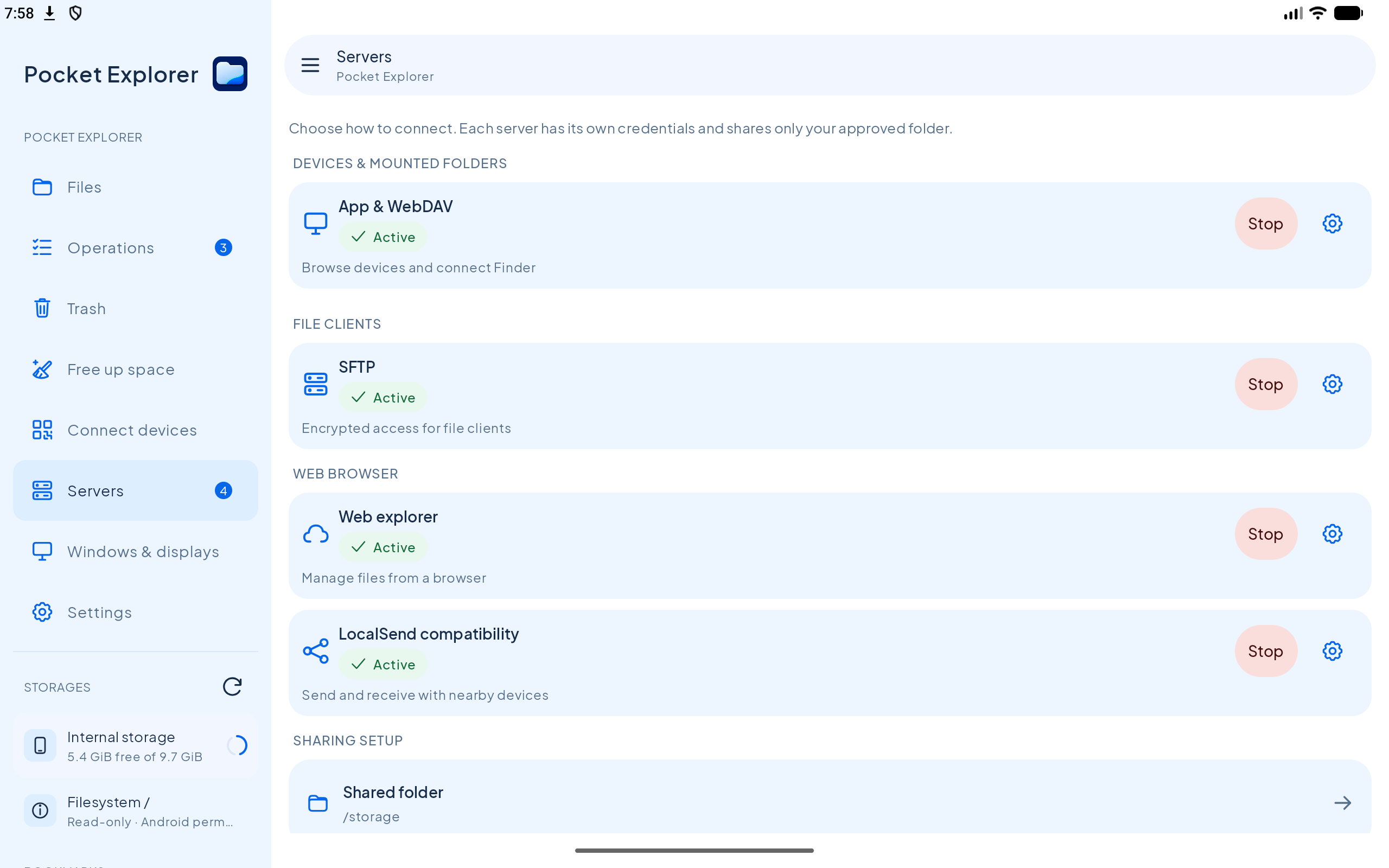
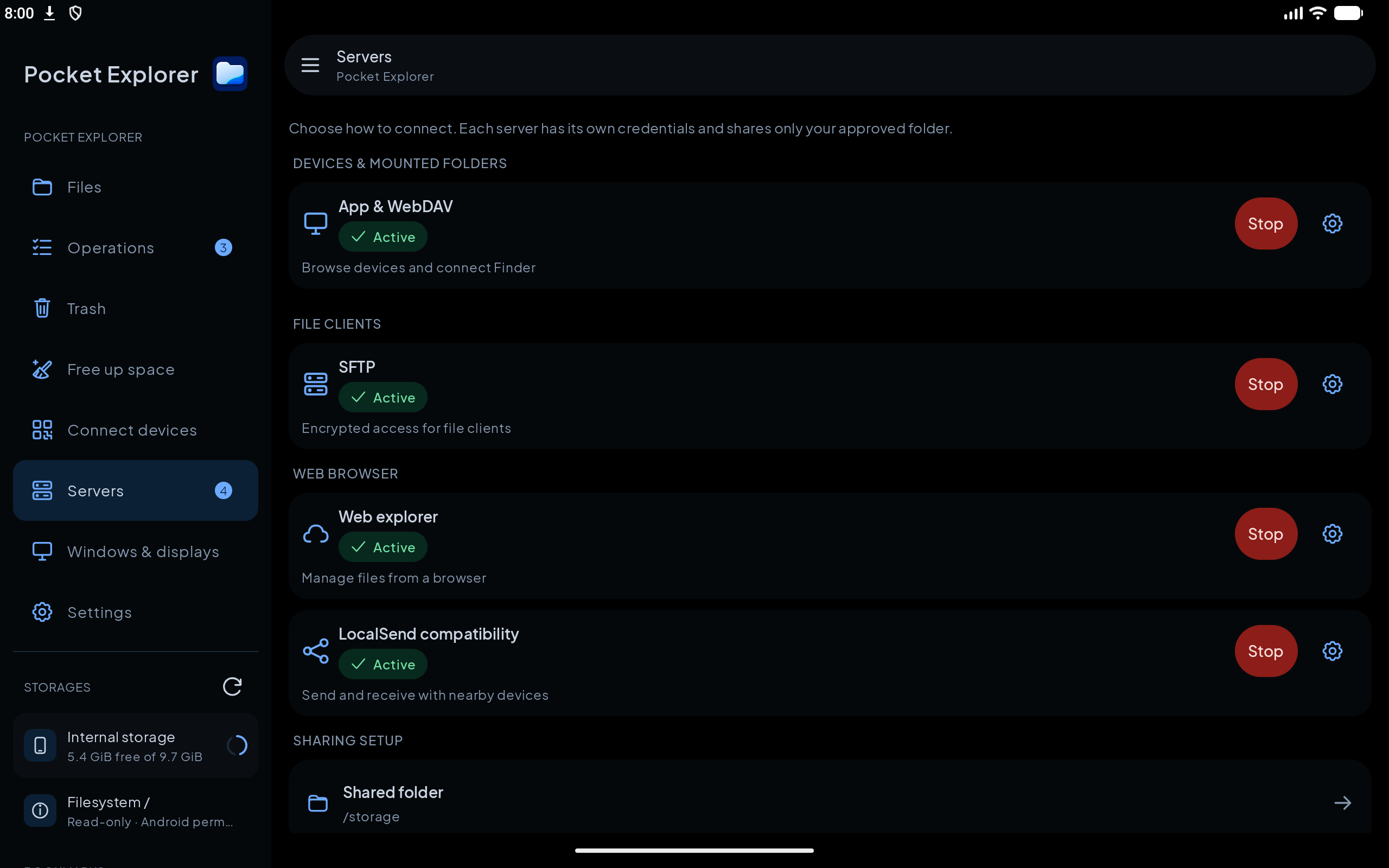
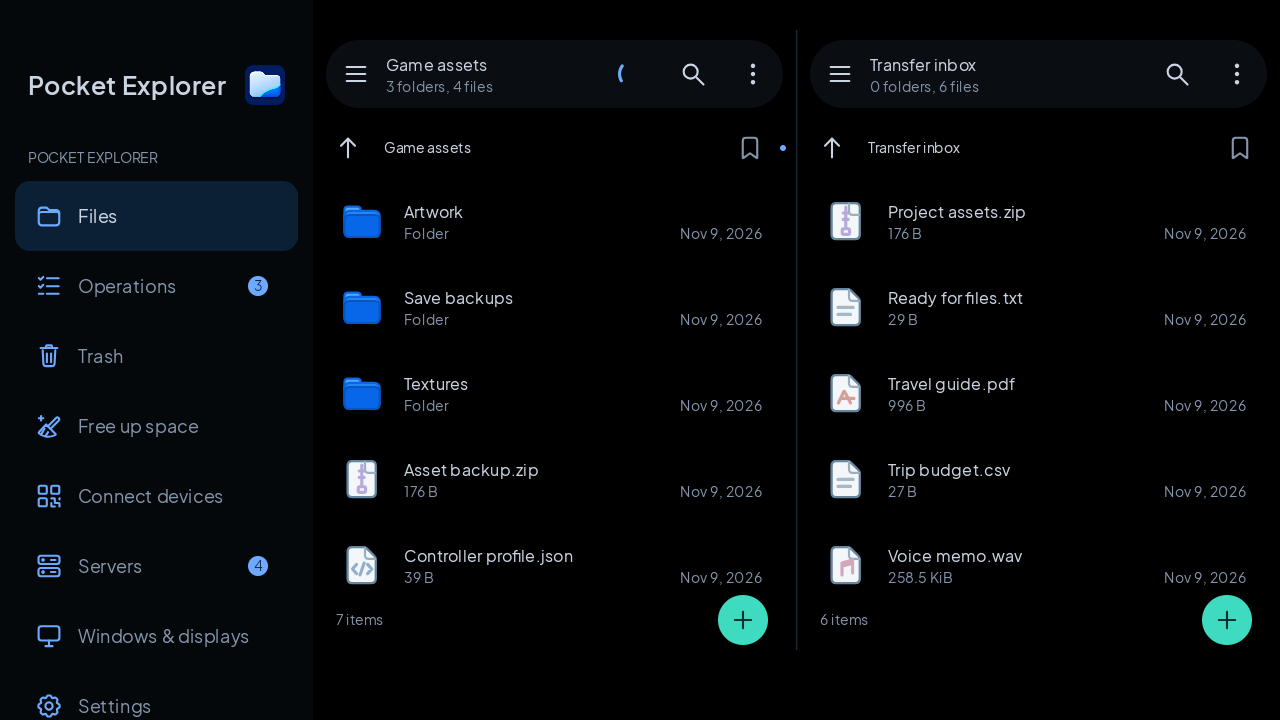
On compatible Android devices—including two-screen handhelds such as AYN Thor—open independent app windows on supported displays. Keep your source on one screen and a destination or operation view on the other.
Use accessible internal or removable storage, then switch between touch-friendly and compact views as the task changes.
Window placement depends on Android and the device. Access is limited to storage Android allows you to manage.
See the handheld workflow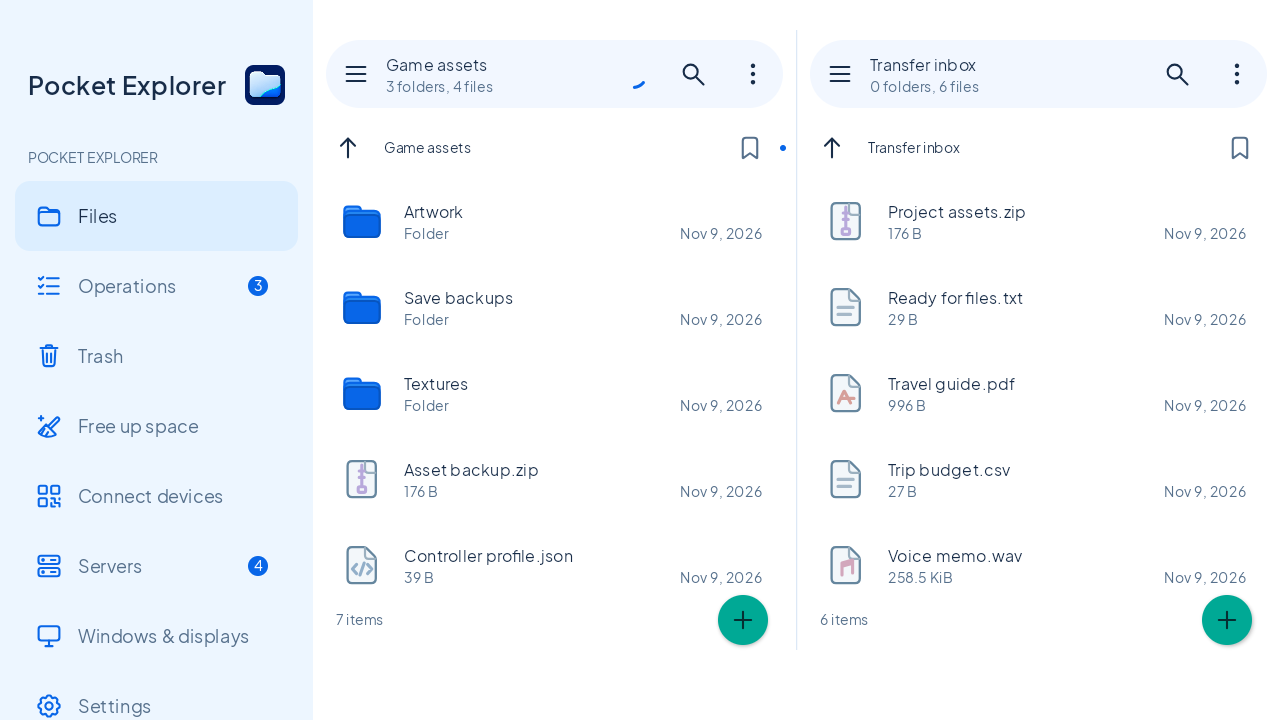
A few more ways
to make it yours.
Nearby LocalSend compatibility
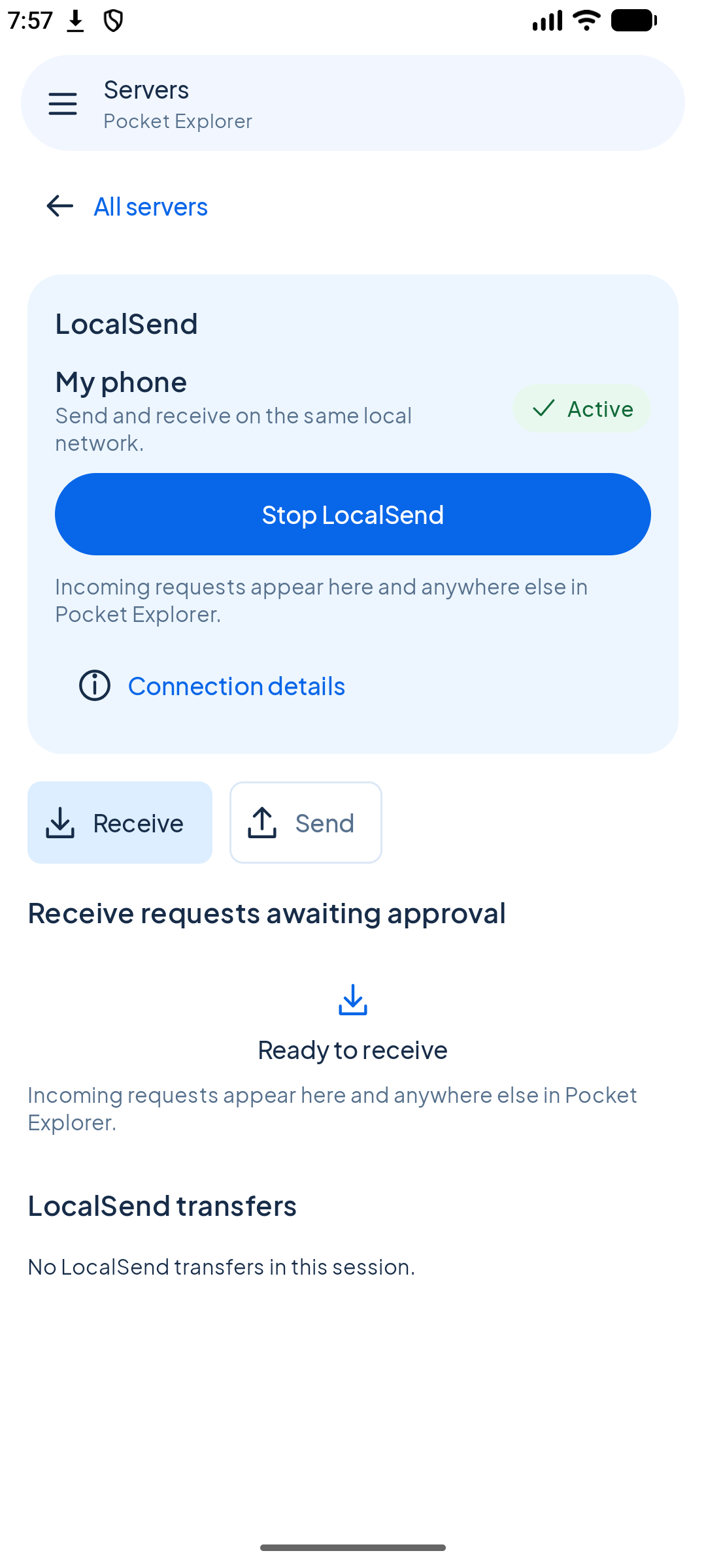
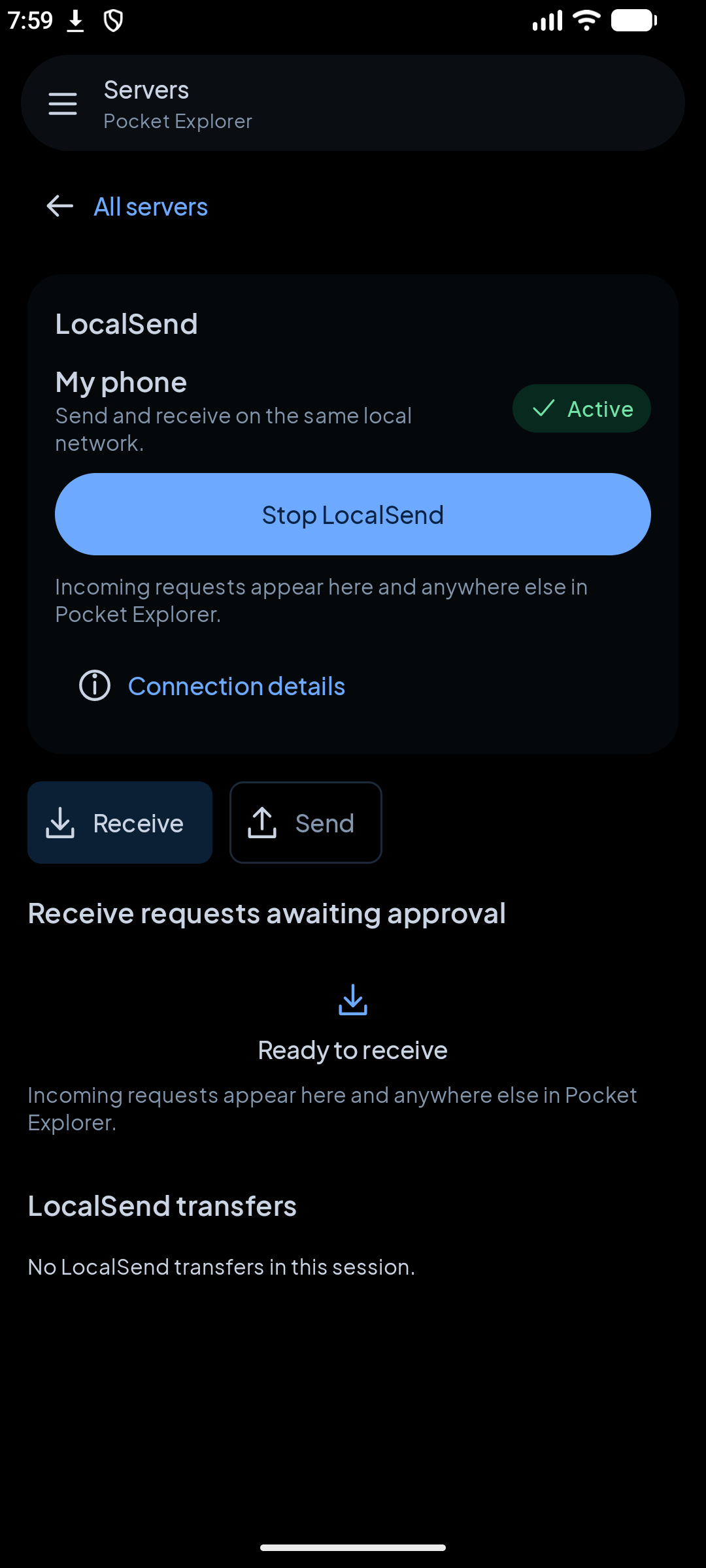
Send and receive approved nearby file requests using a separate opt-in LocalSend v2.2 HTTPS transport. Discovery announces nearby-device information while enabled; receiving still needs approval. It is not remote browsing or native chunk resume.
App-open server startup, when you choose it
Opt in per protocol in Settings. Android starts root-bound servers on foreground visits. Manual Stop stays stopped for that entry/launch. This does not register a boot service or approve files automatically.
Android home-screen widget
See storage, operations and server summaries with safe shortcuts. Launcher support determines placement and resizing. A widget action does not silently delete files or start a server.
Your language, theme and views
English, Spanish, Simplified Chinese and Hindi, a bright light theme, OLED-friendly dark surfaces, folder-specific views and app-bundled license information. Replay the Nori welcome guide from Settings.
Choose the right boundary.
Android 11 or newer, with prepared ARM64, ARMv7, x86_64 and x86 builds. The app provides local file management; transfers use your local network. Device/storage permissions, codec support and background limits still apply.
See Support for setup and recovery.